
Local-first
Control stays on your Mac
DeskVault is positioned around local ownership first, not blanket cloud dependence.
For macOS
DeskVault is built for sensitive videos, images, audio, and documents that should stay on your Mac without turning into a daily friction point. It encrypts file data at import, keeps filenames encrypted on disk, lets users unlock with password or Touch ID, directly play encrypted video, preview encrypted images, save screenshots and clips back into the vault, import from phone over the local network, and keep sync or recovery decisions explicit.
Local-first
DeskVault is positioned around local ownership first, not blanket cloud dependence.
Protected
The vault protects content and reduces filename leakage when the storage folder is visible.
Usable
Playback, screenshots, clips, import, and export remain available after protection is applied.
Core workflow
Why it matters
The problem is not only encryption. It is the messy lifecycle around import, access, reuse, sync, and recovery.
Videos, recordings, screenshots, and personal images often end up across Finder folders, external drives, chat tools, and temporary export paths.
Traditional secure workflows often create new loose files during playback, clipping, export, or screenshot capture.
When review is slow or awkward, people stop using the secure tool and fall back to exposed folders for convenience.
Users want a recovery path, but not at the cost of handing every private asset over to an always-on cloud workflow.
Core product story
The defensible story is not an encrypted player. It is local-first control plus protected day-to-day usability.
Storage
DeskVault turns scattered private files into a visible local vault with search, sort, naming control, and per-file sync decisions.
Workflow
The app keeps common media tasks inside the protected workflow instead of forcing users to decrypt everything out first.
Recovery
Users can keep some files local only, allow iCloud sync per file where supported, export plaintext intentionally, or package content as .dvault.
How the workflow holds together
From first import to later review, the product keeps the user inside a controlled sequence instead of spreading work across unrelated utilities.
Import local media directly or bring content in from mobile over LAN Import. Either way, the vault becomes the primary home for sensitive files.
Unlock with password or Touch ID, search the library, choose visible or encrypted names, and inspect content without full-file decryption.
Save screenshots back into the vault, cut clips back into the vault, export intentionally, and keep recovery or sync choices understandable.
Interface walkthrough
Each part of the interface supports the same promise: protect the content, but do not freeze the workflow.
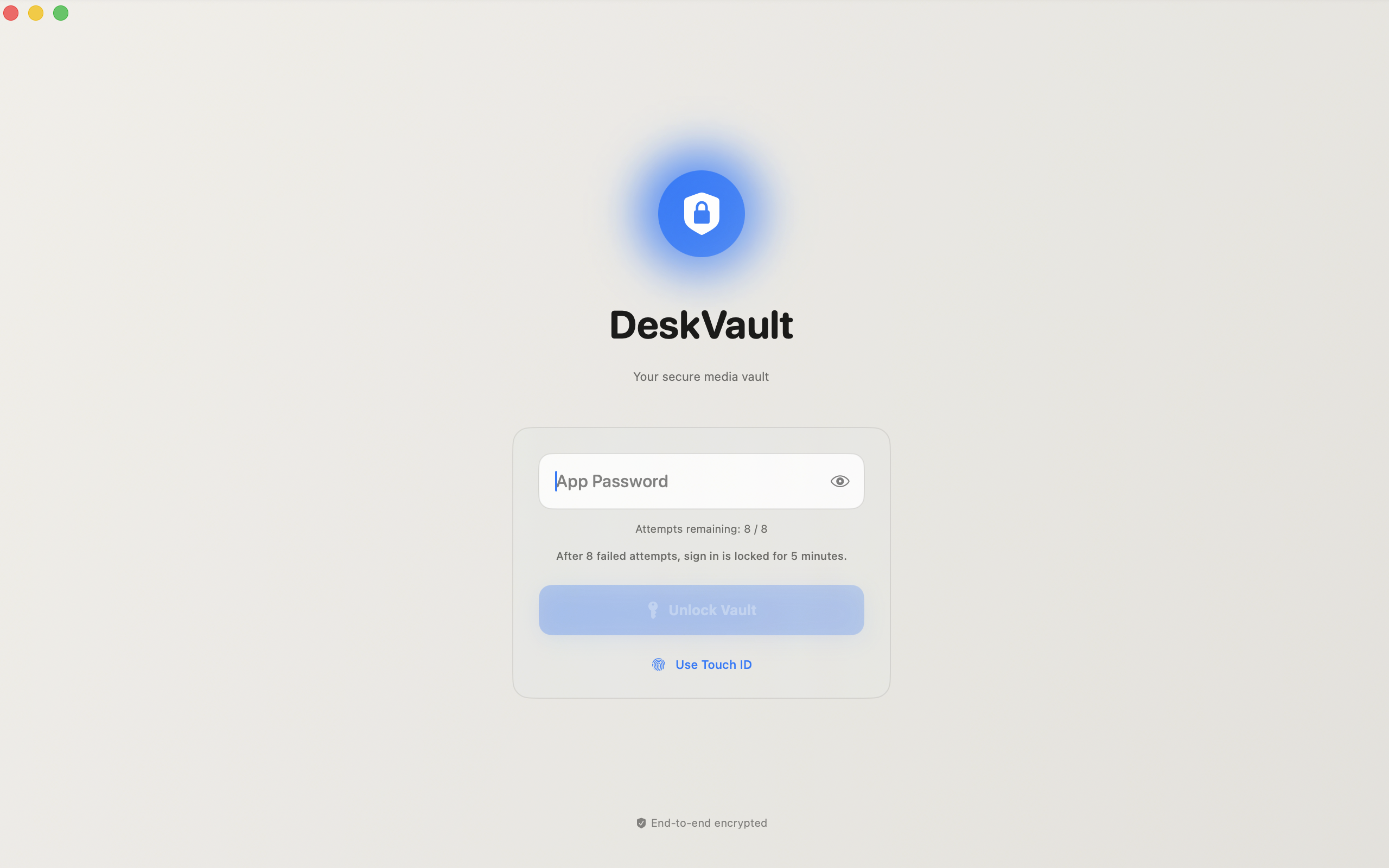
Lock screen
DeskVault opens to a true lock screen instead of hiding protection in settings. Users can unlock with password or Touch ID and switch methods when needed.
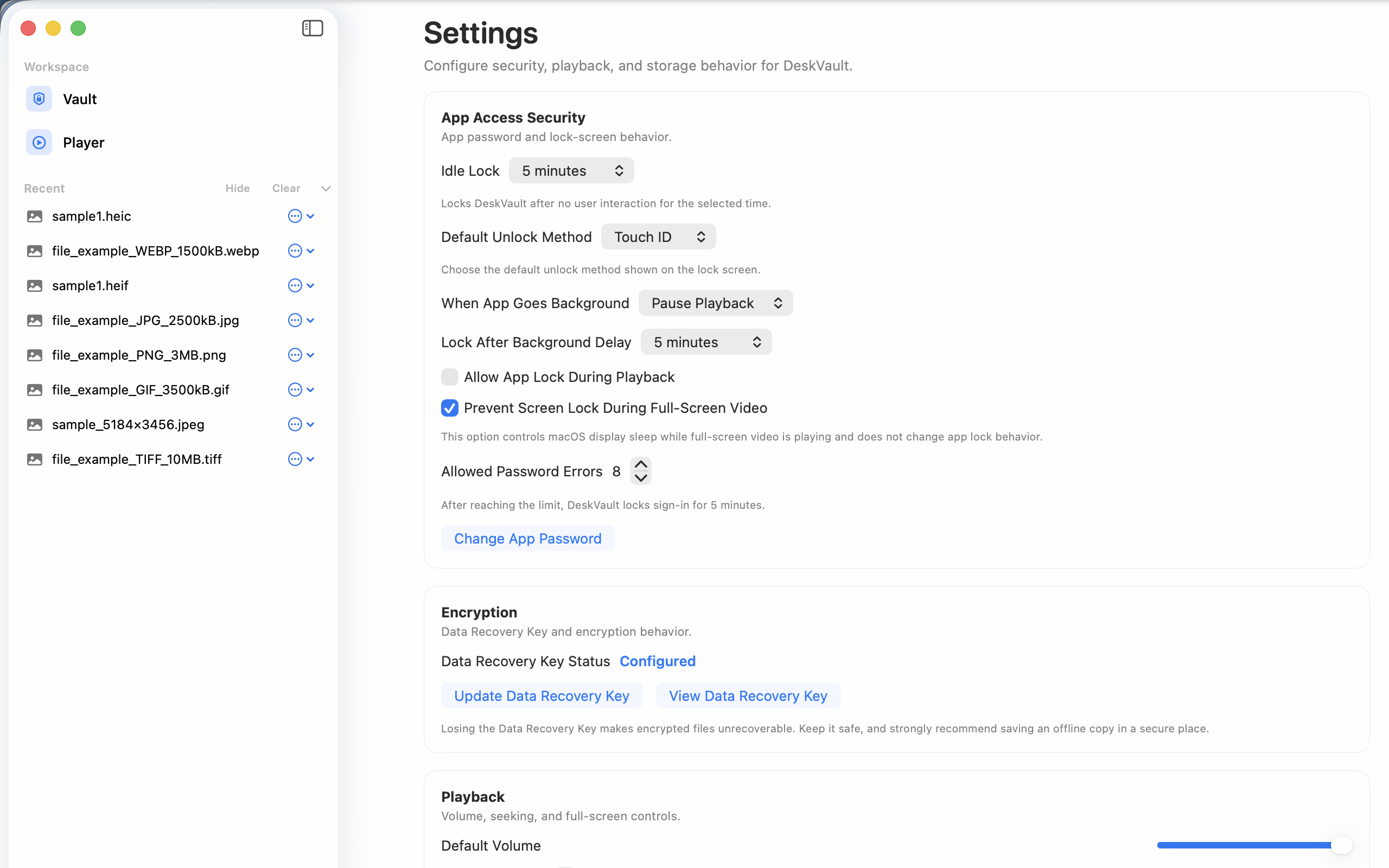
Security controls
Auto-lock timing, background behavior, lock-while-playing choices, screen-sleep protection, and failed-attempt limits make the product feel mature in real use.
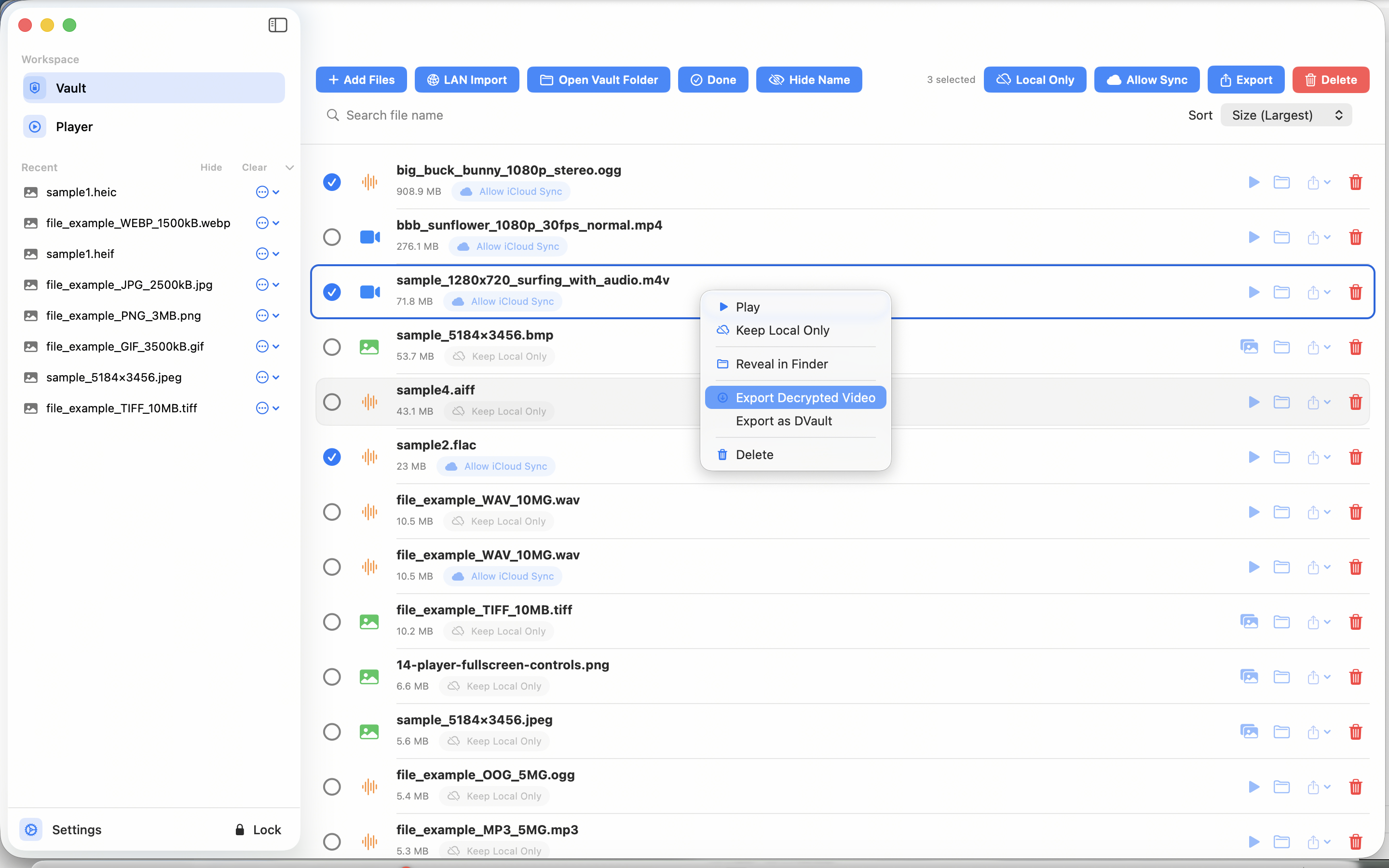
Vault library
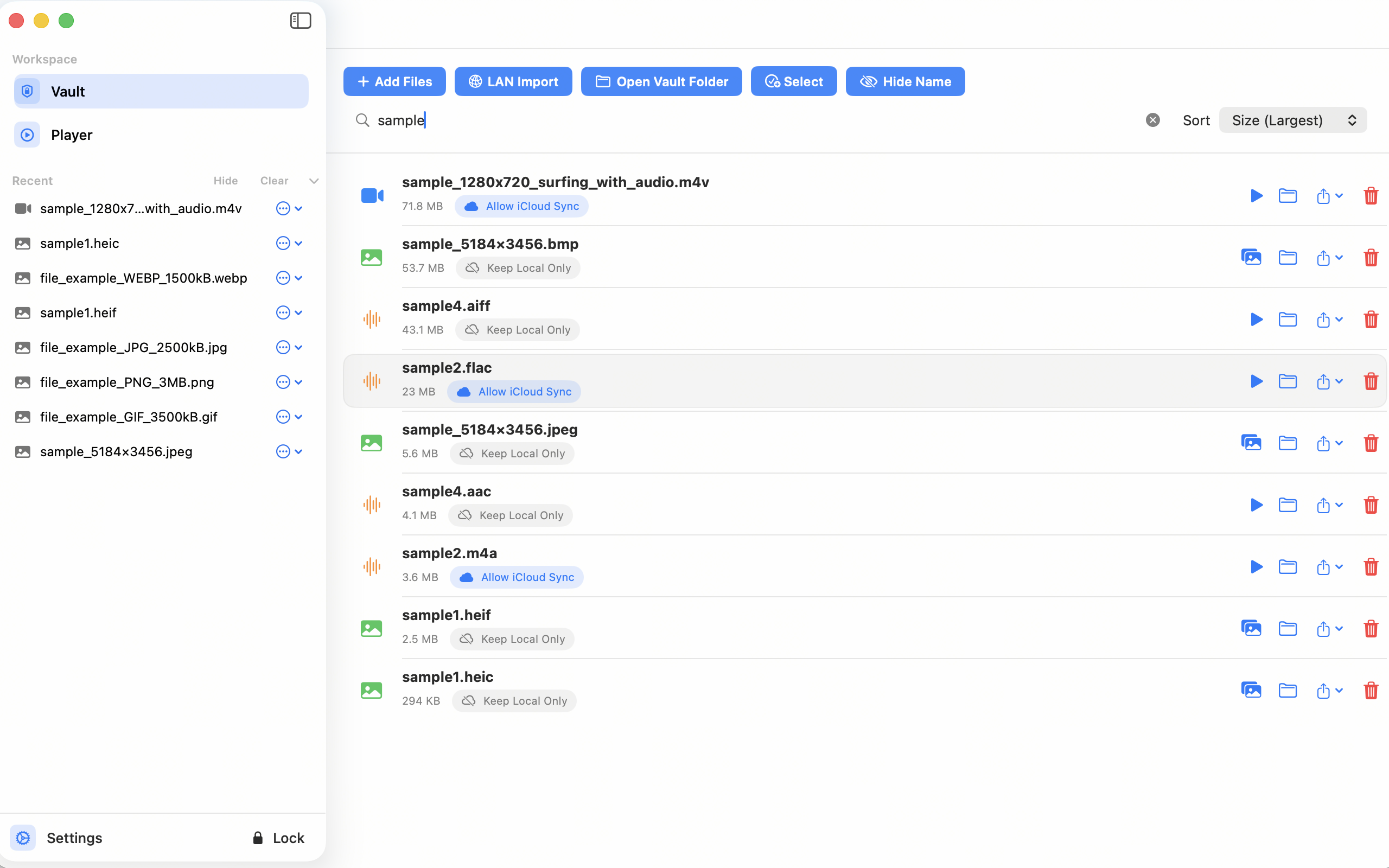
DeskVault’s library is not only a folder replacement. It is where users search, sort, switch name visibility, and decide file-by-file whether content stays local only or is eligible for iCloud sync where supported.
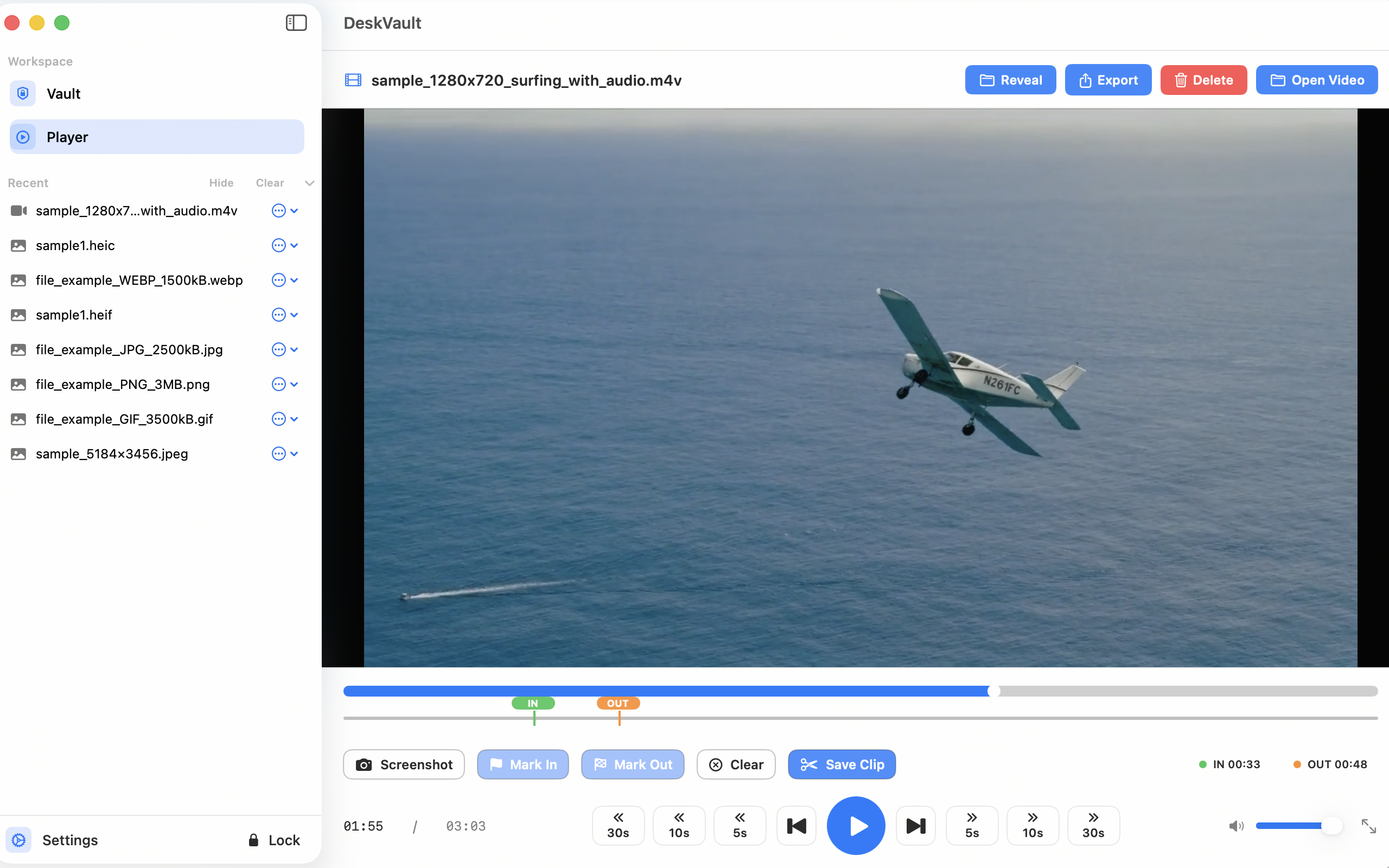
Player workspace
DeskVault’s player is a workspace, not a stripped-down viewer. Users can play protected media, reveal the file when appropriate, export intentionally, capture screenshots, and save clips back into the vault.
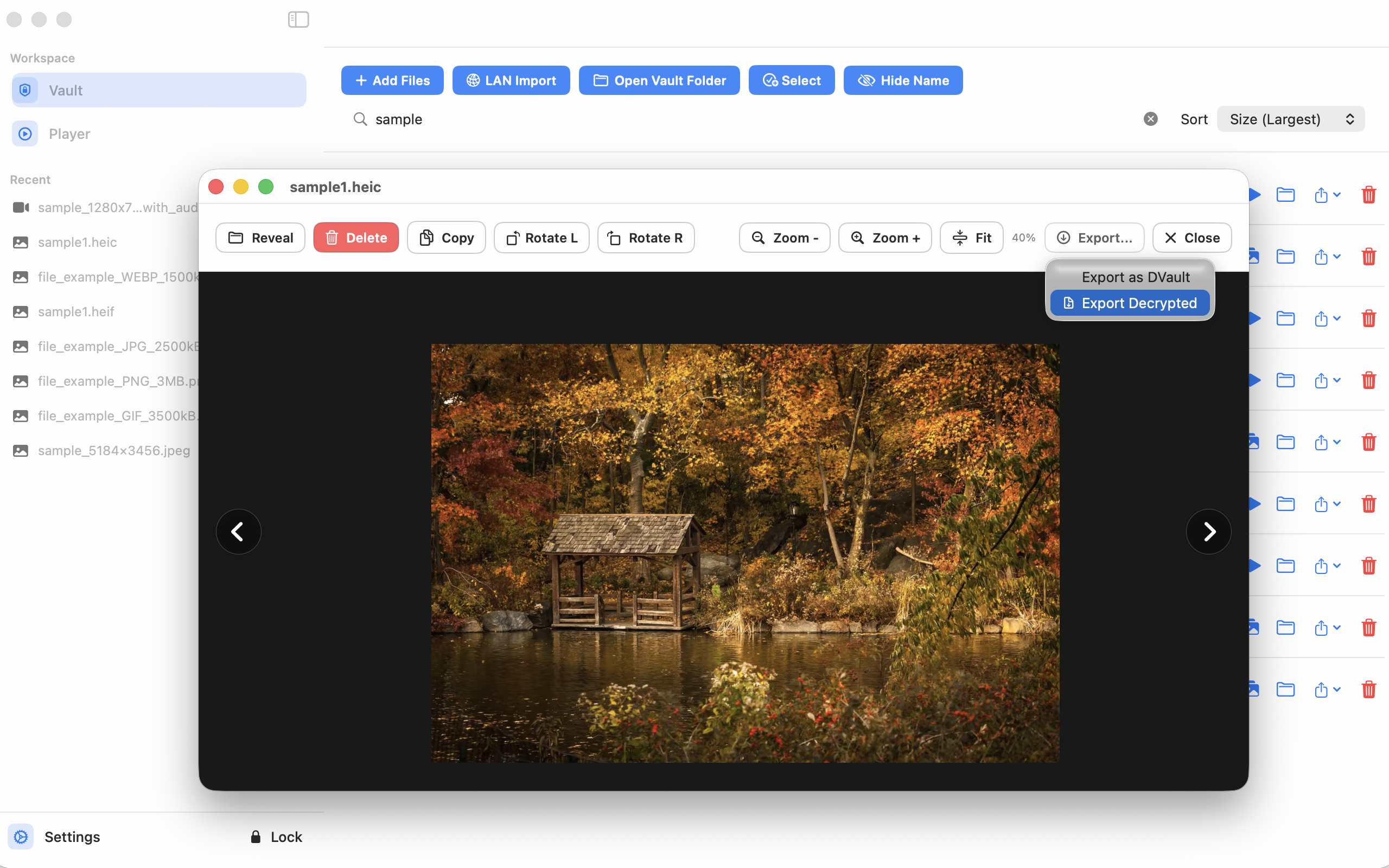
Image preview
The built-in image viewer supports navigation, zoom, fit, rotation, copy, delete, and export so common review tasks do not require another plaintext detour.
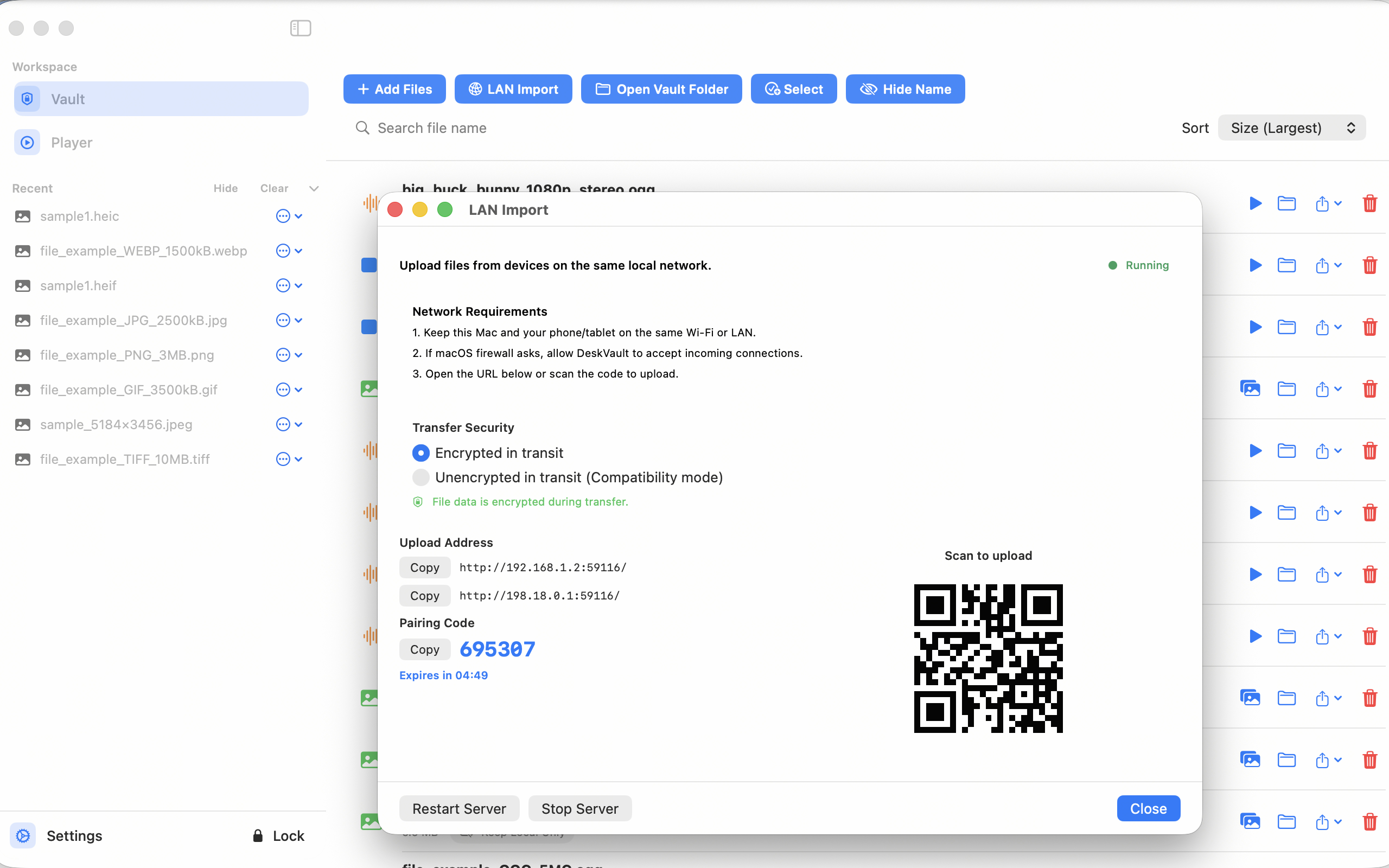
LAN Import
LAN Import gives users a URL, QR code, pairing code, transfer-security options, progress, and activity visibility so mobile content can enter the current vault without detouring through chat apps or public cloud storage.
Trust
DeskVault earns trust by keeping its protection model concrete, understandable, and tied to the product people actually use.
Screenshots
The gallery below mirrors the current product manual and gives search engines and users a complete visual map of the product.
This shot explains the product in one glance: vault, player, settings, and library state all in one controlled environment.
The lock screen turns access control into a visible daily touchpoint rather than a hidden security claim.
Security options show that the app has been designed for interruptions, playback edge cases, and predictable protection on shared machines.
The library view makes local-only storage and file-level iCloud sync decisions understandable instead of hidden.
The player keeps review and reuse in one place, with playback, screenshots, and clip-save tools visible in the same workflow.
LAN Import answers the practical question of how private content should move from phone or tablet into the Mac vault.
Preview, zoom, rotate, copy, delete, and export actions happen inside DeskVault instead of spilling sensitive images into other apps first.
Who it is for
The strongest fit is any workflow where privacy matters, but the files still need to be accessed, reviewed, or reused regularly.
Keep personal photos, recordings, videos, and sensitive documents local without leaving them exposed in ordinary folders.
Handle interviews, course material, drafts, design assets, and reference media inside a vault that still supports everyday review work.
Store demos, training content, research material, and internal media with tighter control over naming exposure, export behavior, and recovery choices.
FAQ
No. DeskVault is built for direct encrypted video playback and encrypted image preview inside the protected workflow.
Yes. DeskVault is positioned around protecting file data and keeping filenames encrypted on disk, reducing meaning leakage when someone sees the vault folder.
No. DeskVault is a local-first secure media workspace for Mac. Where supported, iCloud sync is an optional selective capability rather than the default model.
DeskVault
DeskVault is most compelling when it is presented as a secure media workspace: local-first, readable to the user, and practical for everyday review, reuse, and recovery.